


Writing your first post is easy.
But you should know some things as they may surprise you, even unpleasantly.
10 Best Practices for writing your first article.
1. Article Image
The first image you add in your article will be your default cover image. Substack recommends at least 1,456 x 1,048 pixels, but 420 x 300 is the minimum. 14:10 is the aspect ratio for the preview images.
FYI Premium Me Timers get access to my Canva Substack Basics Kit where you have access to my Article Image Guide. Why? Because Substack crops this image in many ways even if you use the recommended size! (Fun, I know!)
2. The “Style” tab

This is where your headings are. They are hyperlinked so you can make a clickable table of contents. See my guide here otherwise you can figure it out.
3. You can use the link tab to turn text into a link or even Substack Images.

4. Your Substack Article Images can be GIFs.
You can figure this one out as well, if you’d like my super simple Canva templates and Substack Ready sizing and guides, look Here. You’ve got it, right? I’ve used the hyperlink on the image and on the “here” to do this.

5. You add images by pressing on the image Icon.

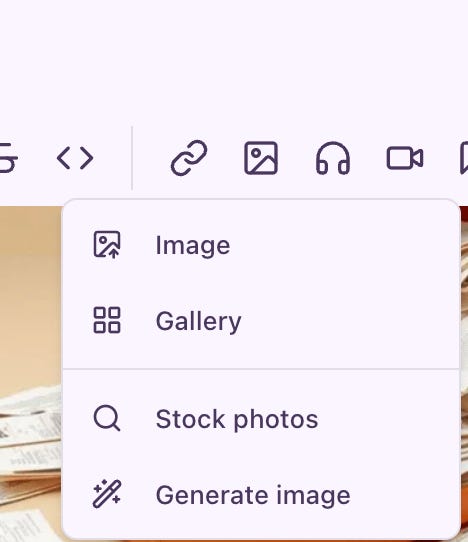
You will see A few options:
A Simple Image to add
Adding a gallery. Looks best with square photos
Stock photos
AI image generator built into Substack.
6. You can add Videos and Audio.

7. You can select text to turn it into quotes.

8. You can add Buttons with calls to action.
The coolest one is the Custom. Where you choose the text and link to whatever you want.
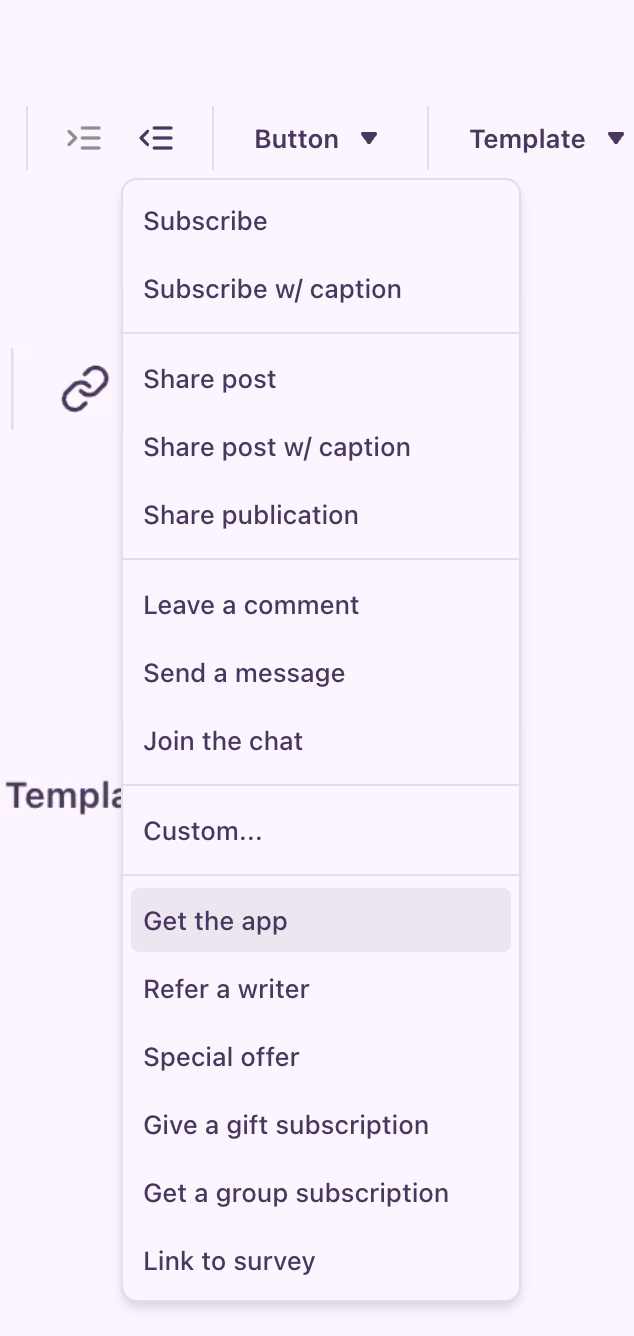
If you want a custom Upgrade to paid button, you can get my template and guide here:
Or at least you learned that you can make one of those buttons. ;)
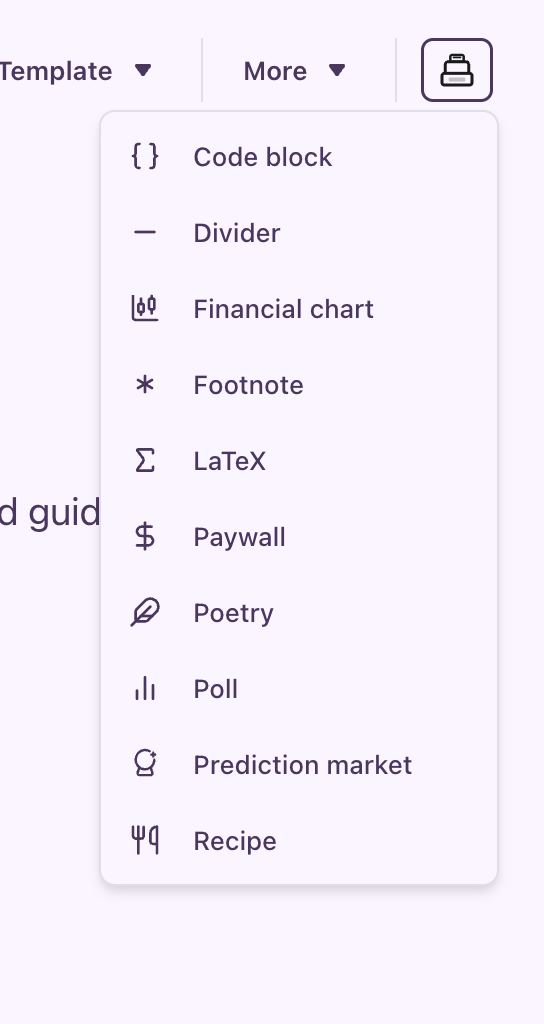
9. More custom goodies
You can add a custom placed paywall, footnote, chart, formula or recipe from the more tab. The best feature is placing your paywall artfully to encourage upgrades to paid.
10. The Substack Templates tab is a gamechanger
the “Templates” tab in the post editor
the app only way to link to any article you have ever written
how to use custom templates to create an “upgrade to paid button” “go paid” “upgrade” custom button.
If you need a Canva template to make a button that matches your publication colors, see my template you can customise. Instructions included in the product.



Legal notice: Accessing and reading Me Time, participating in calls, subscribing, participating on the Me Time Chat and any interaction with https://metimepost.substack.com/ is under the Me Time T&Cs.


